
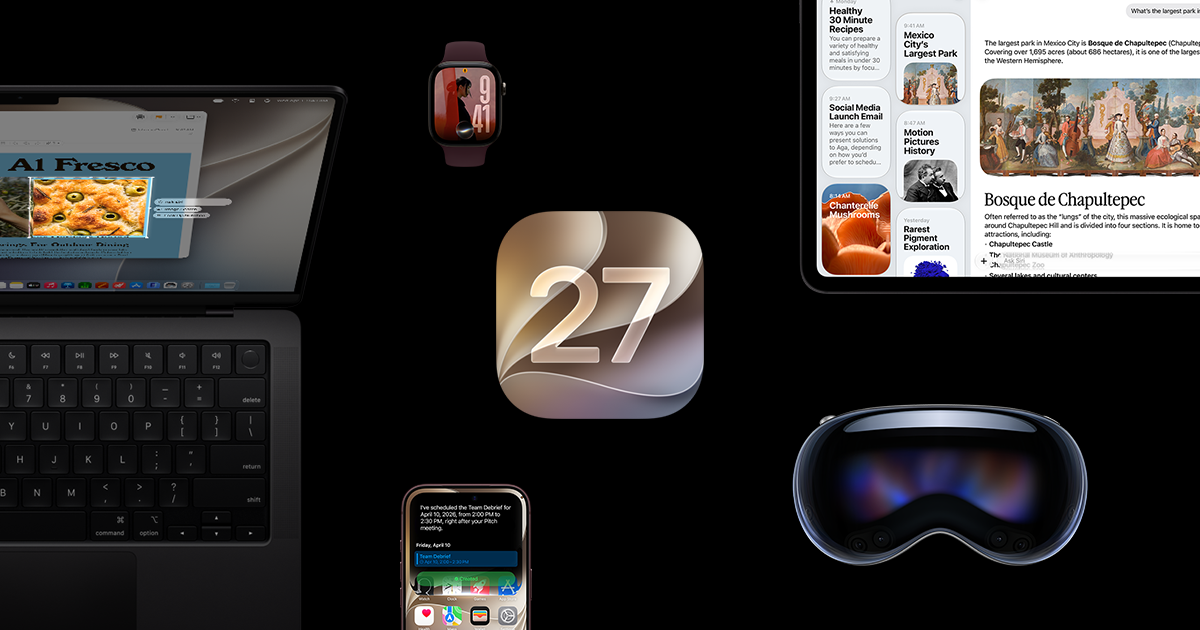
iOS 27 includes a built-in way to make Liquid Glass easier to read without changing the rest of the system’s look. Apple’s iOS page says the appearance control now runs from ultraclear to fully tinted, so you can choose whether the interface emphasizes clarity or stronger contrast. That makes the feature useful for people who find the effect too subtle in busy apps or too bright in certain lighting, while still keeping the visual style Apple introduced with Liquid Glass. [1] [2]
Apple’s current iOS 27 guide says the setting lives in Settings, then Appearance, then Liquid Glass. From there, move the slider left for more clarity or right for more tint. Apple also notes that Reduce Transparency or Increase Contrast must be turned off before you can adjust Liquid Glass, and those options are found under Accessibility, then Display and Text Size. That does not mean you have to give up accessibility preferences permanently; it just means Apple requires those two controls to be off while you use the Liquid Glass slider. [2]
The same Appearance section also includes Text Size and Bold Text, which can help if the main problem is reading labels rather than the glass effect itself. That makes the settings bundle useful for fine-tuning readability in a few different ways at once. If you are trying to decide between a lighter interface and a heavier one, it is worth comparing how the Home Screen, Control Center, and your most-used apps look after each change, since the best balance can depend on wallpaper, brightness, and the apps you open most often. [2] [1]
For people who find motion distracting as well as transparency, Apple documents a separate control in Settings, then Accessibility, then Motion, where Reduce Motion lowers interface movement. Apple’s motion guide says this setting can reduce fluid Liquid Glass morphing, but it is not the same thing as tinting the interface. In other words, one control is for how the system moves, while the Liquid Glass slider is for how transparent or tinted it appears. [3] [2]
Historical context also fits here: on March 15, 2026, Mark Gurman reported on X that Apple was trying to develop a systemwide Liquid Glass slider for iOS 27. That report foreshadowed the current Apple documentation, but the live instructions now come from Apple’s own iOS and support pages. Product information was checked on 2026-10-18. [1] [2]
Sources
Related posts on X
https://x.com/markgurman/status/2033206348159348785
Explore iOS on its official product page.